Published October 26, 2026. Last updated October 26, 2026.
Eventtia MCP is now listed on Microsoft Marketplace, so your event team can ask Copilot about registrations, register an attendee, enroll people into a workshop session or reconcile check-ins from Teams, without opening the Eventtia dashboard or exporting another spreadsheet.
Getting from the listing to a working agent takes eight steps across three Microsoft tools: the Microsoft 365 admin center, Copilot Studio and Teams. None of them is hard. Two of them decide whether the agent is safe to share with your whole team, and they are easy to miss. This guide walks the full path in order, with the labels you will see on screen. We wrote it from a real setup, including the one error we hit along the way.
Summary: the setup in eight steps
| Step | Where | Who | Result |
|---|---|---|---|
| 1. Deploy Eventtia Connect | Microsoft 365 admin center | Microsoft 365 admin | Eventtia Connect is available in your tenant |
| 2. Create the agent | Copilot Studio | Maker | An agent with a name, instructions and a model |
| 3. Add the Eventtia tool | Copilot Studio | Maker | The agent can call Eventtia |
| 4. Set per-user authentication | Copilot Studio | Maker | Each person signs in with their own Eventtia account |
| 5. Check the agent’s authentication | Copilot Studio | Maker | Users are identified with Microsoft Entra ID |
| 6. Test in Preview | Copilot Studio | Maker | Proof that the right tools run with the right arguments |
| 7. Publish and share | Copilot Studio, Microsoft 365 admin center | Maker, admin | The agent in Teams and Microsoft 365 Copilot |
| 8. Verify with a second account | Teams | Maker and a colleague | Proof that the per-user sign-in works |
What is Eventtia Connect for Microsoft 365?
Eventtia Connect is the Eventtia MCP server listed on Microsoft Marketplace and certified as a connector in Microsoft’s connector catalog. MCP stands for Model Context Protocol, the open standard that lets an AI assistant read and change data in another product. On the Microsoft side, that assistant is an agent you build in Copilot Studio and publish to Teams and Microsoft 365 Copilot.
Once connected, the agent works across the same areas of Eventtia that the MCP server exposes to Claude, ChatGPT and other assistants:
| Area | What the agent can do |
|---|---|
| Events | Create and update events, read configuration and modules, pull registration and revenue summaries |
| Attendee types and forms | Configure attendee types, group limits, custom fields and form schemas |
| Attendees | List, search, register, update, confirm and reject attendees, resend confirmation emails |
| Workshops and sessions | Manage workshops and their sessions, enroll and unenroll attendees, read capacity and attendance |
| Speakers | Add and maintain speaker records |
| Check-in | Manage checkpoints and read event, checkpoint and workshop check-in records |
| Payments | Record and review payments against a registration |
The part that matters most to an IT team is how it is built. Each person signs in with their own Eventtia account, using OAuth 2.1. There is no shared service account and no privilege escalation: every action runs within that person’s existing Eventtia permissions. Sensitive attendee fields are redacted from responses by default. Tools that change data are labelled so the agent can tell reading from writing, and actions that reach an external recipient, such as resending a confirmation email, are flagged explicitly. Eventtia credentials are never exposed to the agent, and the server’s error logs record status codes only, never attendee data.
What can your team ask once it is connected?
A few requests event teams run from Teams on day one:
- “How many people registered for the Madrid Summit this week, and how many are still waiting for approval?”
- “Register Ana García as a VIP attendee for Partner Day and resend her confirmation email.”
- “Enroll everyone from Acme Corp into Thursday’s 10:00 workshop session if there is capacity left.”
- “Which checkpoints have the most check-ins so far today?”
- “List the speakers of the Innovation Forum and tell me who still has no bio.”
- “Show me the registration payments recorded yesterday for the Growth Conference.”
Before you start: what you need
A Microsoft 365 tenant and someone who can act as a Global Administrator. Deploying Eventtia Connect and accepting its permissions happens in the Microsoft 365 admin center, and only a global admin can give that consent.
Access to Microsoft Copilot Studio with a license that allows publishing. A Microsoft 365 Copilot license works, and so does a Copilot Studio user license with message capacity allocated to the environment. Trial licenses let you build and test but not publish.
A Power Platform environment where you can create agents. If your organization uses data policies (DLP), the Eventtia connector must be allowed in that environment, otherwise you will hit a policy error when you add the tool. The connector is available in all Copilot Studio regions except US Government (GCC and GCC High), US Department of Defense and the China cloud.
An Eventtia account for every person who will use the agent, with API access enabled. There is no anonymous mode: the agent works with each user’s own Eventtia permissions, and someone whose role cannot see an event in Eventtia will not see it through Copilot either.
For end users, either a Microsoft 365 Copilot license or Copilot Credits capacity. Standalone Copilot Studio agents used in Teams consume Copilot Credits, except when the user has a Microsoft 365 Copilot license, in which case the usage is not billed.
Step 1: Deploy Eventtia Connect from Microsoft Marketplace
This step belongs to your Microsoft 365 admin.
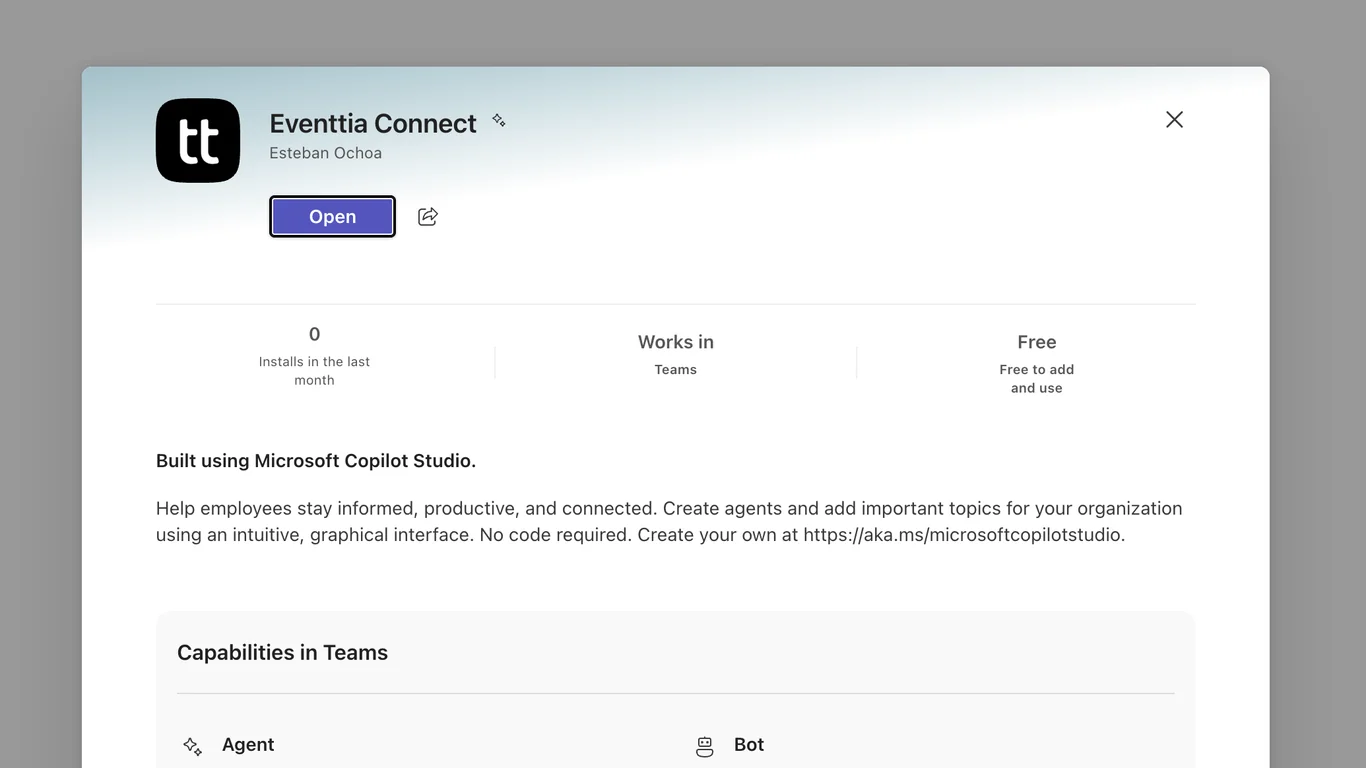
- Open the Eventtia Connect listing and select Get it now. You land in the Microsoft 365 admin center, under Settings > Integrated apps. You can also get there directly: in the admin center, choose Settings, then Integrated apps, select Get apps and search for Eventtia Connect.
- Accept the permissions and select Continue, then Deploy.
- Select Add users and choose who gets the app: Entire organization, Specific users/groups (a Microsoft 365 group, security group or distribution group) or Just me. For a pilot, a group with your event team and the person building the agent is the right size.
- Select Next, accept the permission request if one is shown, review the deployment and select Finish deployment.
Microsoft notes that it can take up to 24 hours for a deployed app to show up for all users, so do this step first. The deployment page in Integrated apps shows the status and the date, and you can widen the audience later by editing the deployment.
Step 2: Create the agent in Copilot Studio
Go to copilotstudio.microsoft.com, pick the environment you want to build in, and create a new agent. This guide uses the new Copilot Studio experience, the one with Build, Preview, Evaluate and Monitor tabs and a components panel on the right. If you do not see those tabs, turn on Use new experience on the Copilot Studio home page before creating the agent. If your screens still show a different layout, the steps are the same but some labels move.
Give the agent a name your team will recognize in Teams, such as “Eventtia Agent”, and write the instructions. Keep them short and specific. Here is the set we use as a starting point:
You help event teams manage their events in Eventtia. Use the Eventtia tools for anything about events, attendees, attendee types and registration forms, workshops, sessions, speakers, check-ins or payments. Before changing data (creating, updating, confirming, rejecting, enrolling, resending emails or recording payments), summarize what you are about to do and ask the user to confirm. Never request sensitive attendee fields unless the user explicitly needs them for a registration or compliance task. If it is unclear which event the user means, ask.
Pick a model from the Model dropdown in the right panel (we used Claude Opus 5.5), and under Channels add Teams + Microsoft 365 now. It saves a trip back when you publish.
Step 3: Add the Eventtia MCP server as a tool
- On the Build tab, select Tools in the right panel, then Add a tool.
- In the Add a tool dialog, open the Model Context Protocol (MCP) tab or search for Eventtia. Select Eventtia, shown as an MCP server developed by Eventtia with a Docs link to the Microsoft Learn reference page.
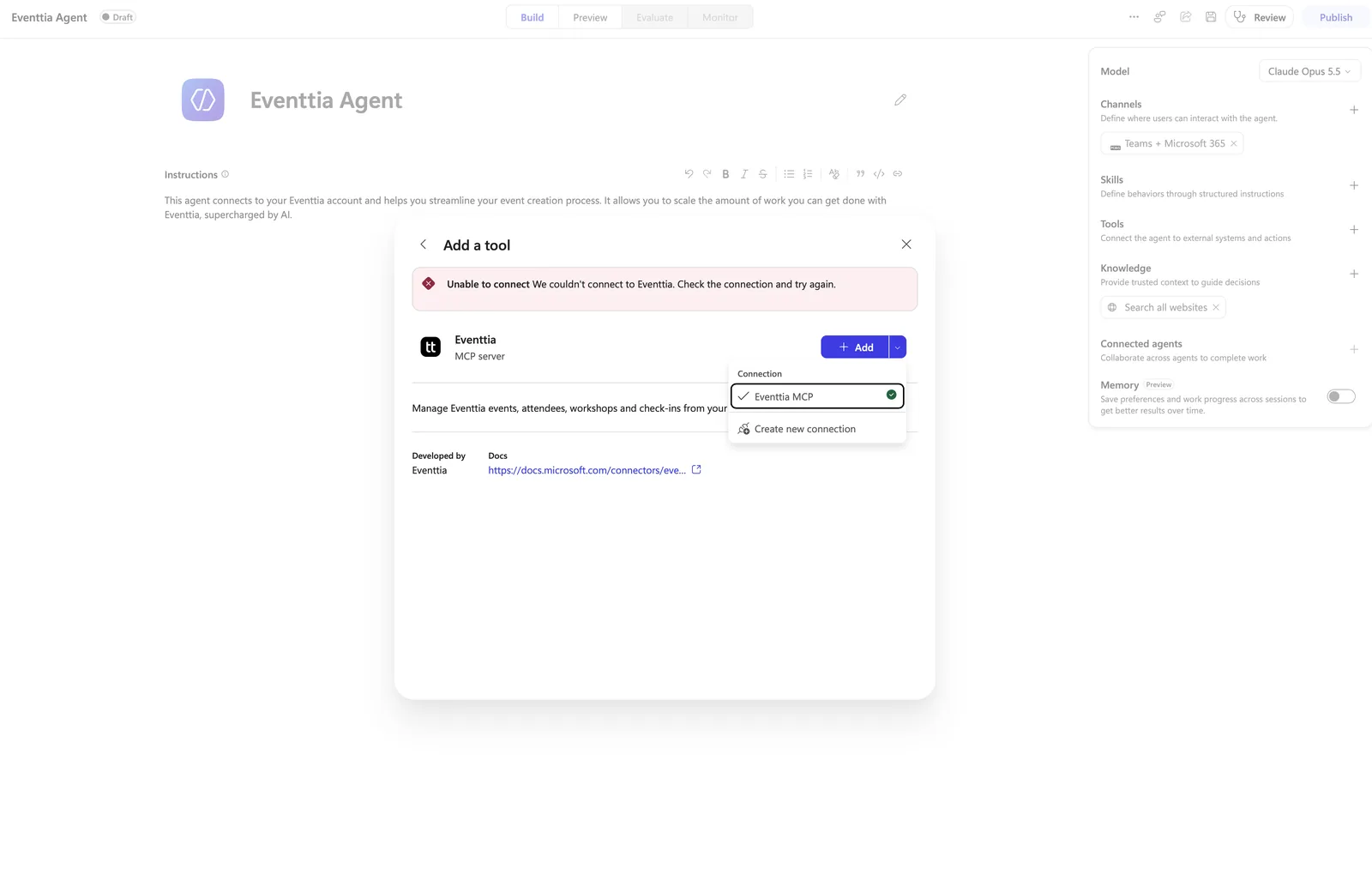
- The Add button has a Connection dropdown next to it. Choose Create new connection, sign in with your Eventtia email and password, and authorize the connection. Then select Add.
- Copilot Studio contacts the server, completes the MCP handshake and lists every tool it exposes. The Edit tool dialog opens with the connection marked as connected and the full list under Tool permissions.
Leave Allow all on if you want the agent to have the full tool set from day one. For a first rollout with a large team, a reasonable alternative is to switch off the tools that change data (create, update, confirm, reject, resend, enroll, payments) and enable them once people trust the agent. Each tool has its own toggle, and you can come back to this dialog at any time by selecting the Eventtia server under Tools.
The connection you just created is yours. It is what Copilot Studio uses while you build and test. Whether your colleagues also use it is decided in the next step, which is the one that matters.
Step 4: Make every user sign in with their own Eventtia account
In the header of the Edit tool dialog, next to the connection, there is an Authentication dropdown. Set it to End user account and keep it there.
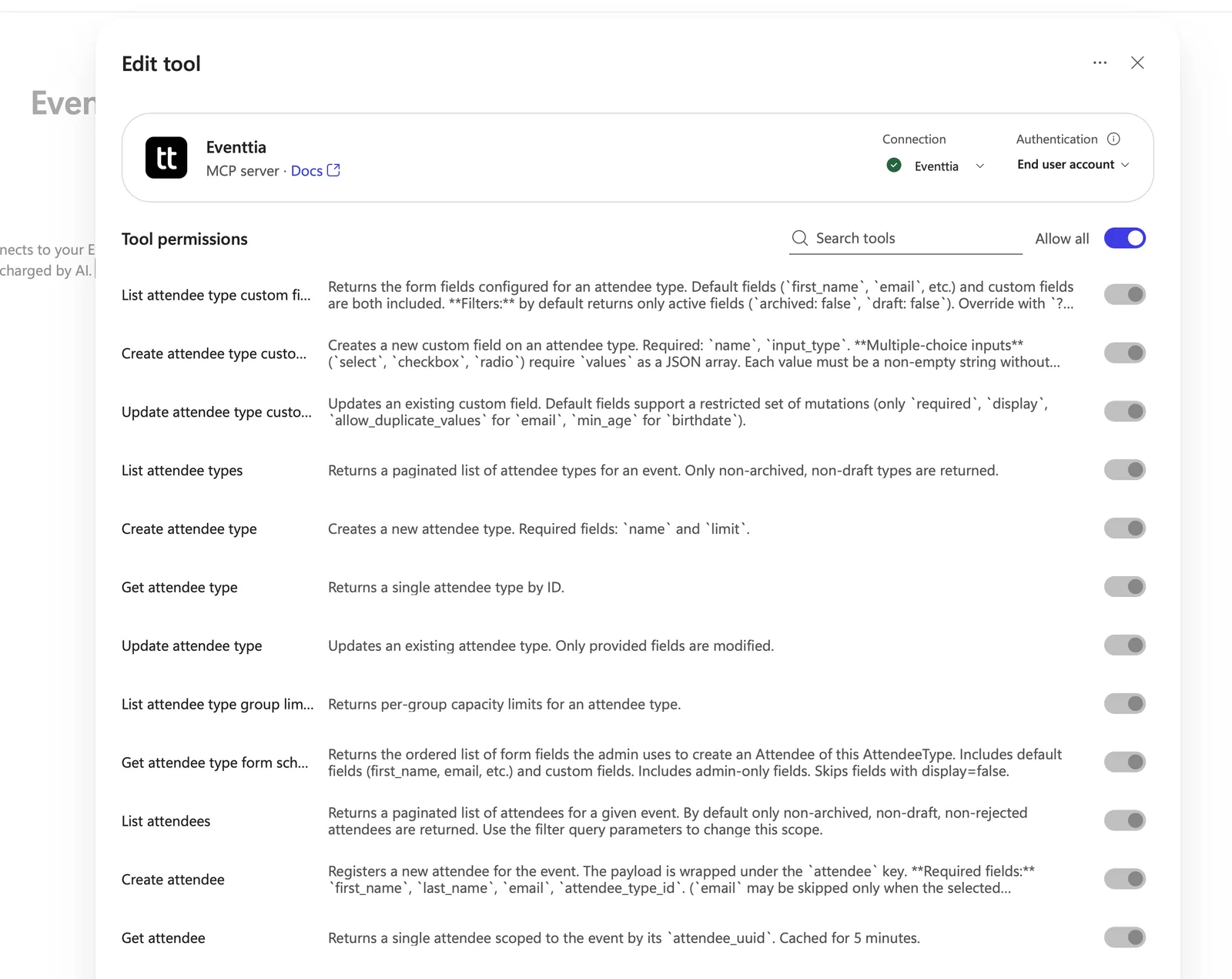
This setting decides whose Eventtia account the agent uses at runtime.
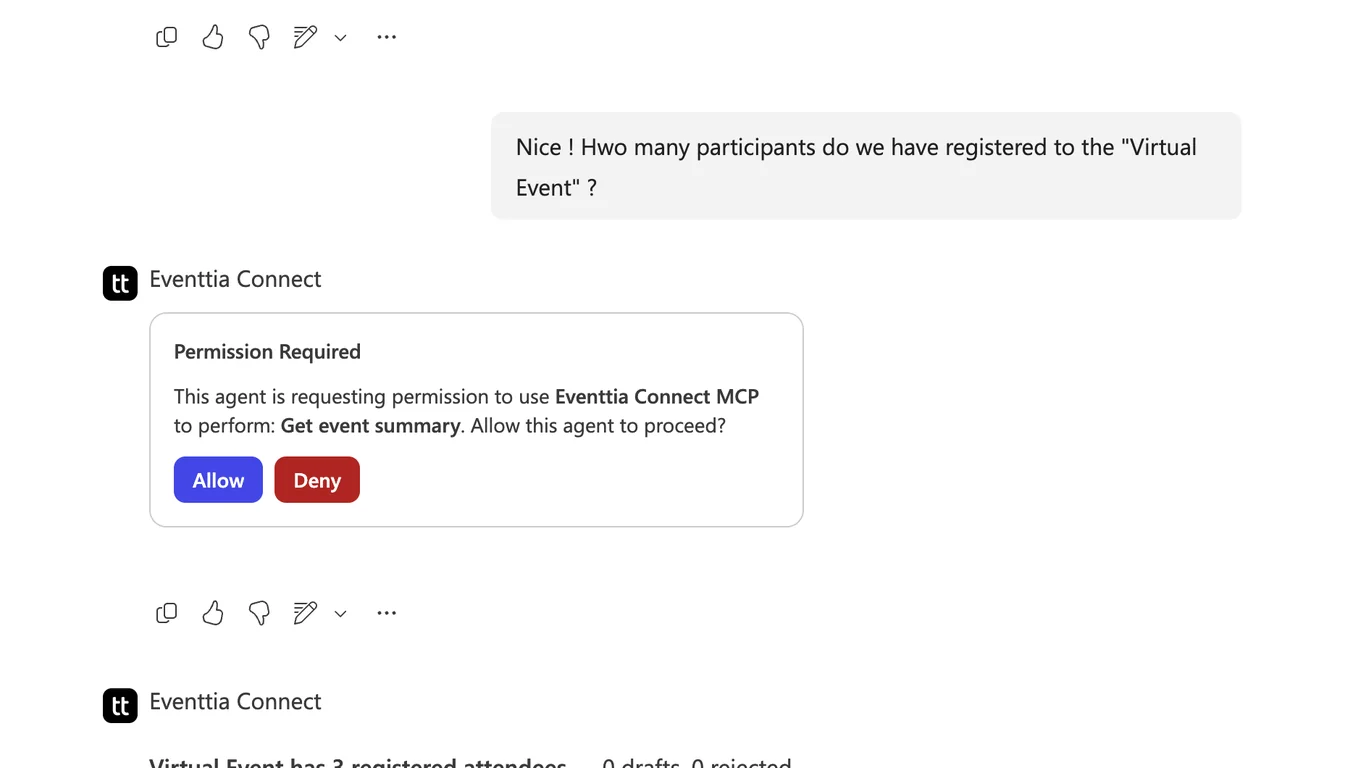
With End user account, the first time a person triggers an Eventtia tool in Teams or Microsoft 365 Copilot, they get a permission card asking them to connect to Eventtia. They sign in with their own account, Microsoft stores that connection under their name, and they are not asked again in later conversations unless the connection expires or they remove it. From then on, each person only sees what their own Eventtia role allows, and every change in Eventtia is attributed to the right user.
With the other option, every user’s requests run through the connection of the person who built the agent. Everyone would see the events that person can see, and everything they create would be logged under that person’s name. Microsoft documents this as an oversharing risk, warns about it in the pre-publish security scan, and gives admins a switch to block it for a whole environment: in the Power Platform admin center, under the environment’s Settings > Product > Features, the Control maker credential options setting can be limited to end-user credentials. If you manage several makers, turning that on removes the risk for every agent in the environment, including this one.
Select Save to close the tool.
Step 5: Check the agent’s own authentication
Per-user connections only work when the agent knows who the user is. Select the … menu in the top toolbar, then Settings, open Safety & access and confirm that Authentication is set to Authenticate with Microsoft. That is the default, and it is required for the Teams + Microsoft 365 channel anyway. Do not switch it to No authentication: that setting is for public agents and it breaks the per-user sign-in from Step 4.
Step 6: Test in Preview
Open the Preview tab and ask for something that needs Eventtia, for example “List my upcoming events.” Then open the activity trace to confirm which tool ran, with which arguments, and what came back. If the agent answers from general knowledge instead of calling the tool, make the instructions more explicit about when to use Eventtia.
Try one change too, on a disposable test event: register a test attendee, then confirm the registration. The agent should summarize what it is about to do and wait for your confirmation before each write, if your instructions ask for it.
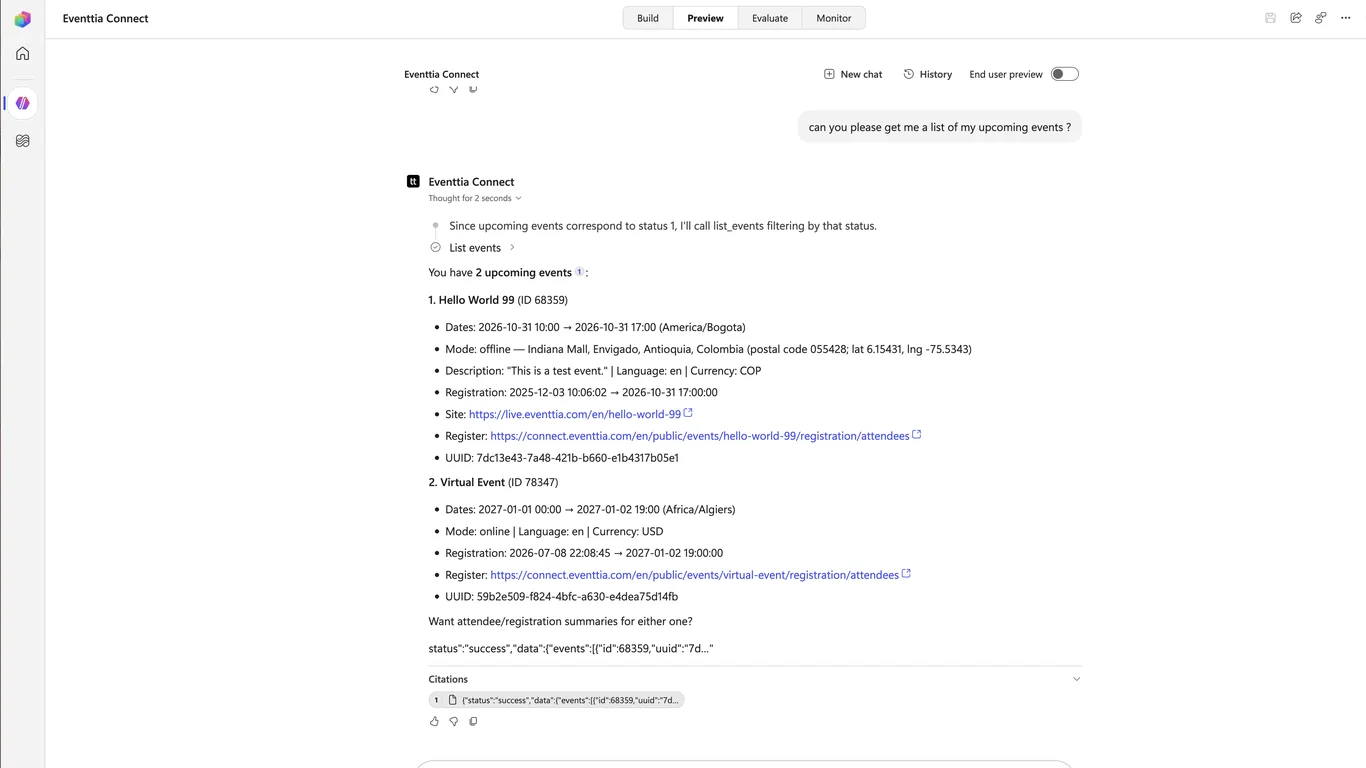
One limit to keep in mind: Preview always runs with your own Eventtia connection, whatever the Authentication setting says. It proves the tools work. It cannot prove that colleagues will be asked to sign in. That is what Step 8 is for.
Step 7: Publish and share the agent
- Select Publish in the top toolbar, then Publish agent, and wait for the publication to finish.
- Open Teams + Microsoft 365 under Channels. Under Availability, choose Microsoft 365 Copilot and Microsoft Teams and add the channel if you have not done so yet.
- Fill in About info: a short description, a long description and a developer name. This is the listing your colleagues will see in Teams. Select Save, then Publish again so the listing goes out with the agent.
- Decide who can use it. Select the Share icon next to Publish. You can add people and groups by name or email, or open the Organization dropdown and choose End user access so anyone in the company can find and use the agent. Start with your pilot group.
- From Teams + Microsoft 365, select Use and share, then View in Teams to add the agent to your own Teams, or View in Copilot to open it in Microsoft 365 Copilot.
Depending on your tenant’s policies, making the agent available to the whole organization may require an admin to approve it in the Microsoft 365 admin center before it appears for everyone. Approved agents show up in the Copilot agent store under Built for your org, and admins can assign them to specific users or groups from there. Two practical notes: republish after every change so users get the latest version, and expect propagation delays. Users in Teams may need to type “start over” or reopen Teams to pick up an update, and a new deployment can take a while to show up in the store.
Step 8: Verify with a second account
Share the agent with a colleague, or with a test user in your tenant, and ask them to open it in Teams and request something that needs Eventtia. Three things should happen.
They should get a permission card asking them to connect to Eventtia, followed by the Eventtia sign-in. After signing in, they should only see the events their own Eventtia account can access, and nothing they cannot see in the Eventtia dashboard. And in Power Apps, under Connections, a new Eventtia connection should now appear under their name rather than yours.
If instead the agent answers with your data and no sign-in prompt, either the tool’s Authentication is not on End user account or the published version is older than that change. Fix the setting, publish again, and have your colleague start a new conversation.
Troubleshooting
“Unable to connect. We couldn’t connect to Eventtia. Check the connection and try again.” This appears in the Add a tool dialog when Copilot Studio cannot complete the MCP handshake with the selected connection, even if the connection shows a green check. The usual cause is a connection created earlier whose sign-in has gone stale. Open the Connection dropdown, select Create new connection, sign in to Eventtia again and add the tool. If a fresh connection still fails, check the environment’s data policies with your Power Platform admin, and if the problem persists, send the time of the attempt to support@eventtia.com so we can check the server logs.
“This request is not allowed per policy.” A data loss prevention policy in your Power Platform environment blocks the Eventtia connector. An admin needs to allow it in the environment’s data policies (Power Platform admin center > Policies > Data policies). Add the tool again once the policy has propagated.
In Teams, the tool returns the “connect” message instead of data. The user selects Allow on the permission card, and the agent’s reply is the authorization text rather than the result. This has been reported with per-user tools in Teams while Microsoft refines how connector permissions are attached to the agent’s identity at publish time. Remove the Eventtia tool, add it again, publish, and ask the user to type “start over” or reopen Teams. Preview and Microsoft 365 Copilot use a different authentication path and are usually unaffected.
The agent does not appear in Teams or in Microsoft 365 Copilot. Check, in this order: the agent is published (not only saved); the person is included in the share settings or the organization-wide option is on; an admin has approved the agent if your tenant requires it; enough time has passed for the store to refresh. If users have the agent but get an error on first use, check that they have a Microsoft 365 Copilot license or that the environment has Copilot Credits capacity.
Users are asked to sign in to Eventtia again. Their connection expired or was removed. Signing in again fixes it. If the agent’s own connection expired, open the Eventtia server under Tools and update the credentials from there.
A list stops at 24 records. That is the page size cap of the Eventtia list tools. Ask the agent for the next page, or narrow the request with a filter such as attendee type or status.
The agent reports a rate limit (HTTP 429). Eventtia’s API rate limit was reached. The server passes the Retry-After value through and does not retry on its own. Wait the indicated time and ask again.
Phone numbers, ID documents or custom fields are missing from attendee data. That is by design. Sensitive fields are redacted unless the user explicitly asks for them for a specific registration or compliance task, and the request has to be repeated for each call that needs them.
Security and data handling: what your admin will ask
Identity. Every call runs under the signed-in Eventtia user. Eventtia Connect acts as an OAuth 2.1 authorization server towards Microsoft and as a confidential client towards Eventtia, with PKCE required. Access tokens issued to the agent live for one hour. The underlying Eventtia tokens are stored encrypted on the server side and are never returned to the agent; refresh is automatic.
Data minimization. Identity document, birth date, telephone, alternative email, invoice address, custom fields and metadata are stripped from attendee listings and attendee details by default. A user has to ask for a specific field, for a specific registration, to see it.
Writes. Tools that change data are labelled, and the ones that reach outside Eventtia, such as resending a confirmation email, are flagged separately. Payment tools write records to the Eventtia payment ledger; they do not move money or contact a payment processor. Archiving a checkpoint or a session is a soft delete. Your agent instructions can require a confirmation before any change, and the tool toggles let you remove write access entirely.
Governance on the Microsoft side. Power Platform data policies control whether the Eventtia connector can be used in an environment. The Control maker credential options setting removes the possibility of a shared connection. Sharing controls decide who can use the agent, and Microsoft Entra conditional access applies as it does for any Microsoft 365 app.
Revoking access. A user can delete their Eventtia connection in Power Apps, under Connections, and will be asked to sign in again the next time the agent needs Eventtia. Deactivating the user in Eventtia ends their access immediately, since every call is checked against Eventtia permissions. Removing the tool from the agent, or the agent from the share list, cuts the whole team off at once.
What it does not cover. Eventtia Connect exposes the Connect API V4 surface. Agendas, sponsors, meeting scheduling, badge printing and the email campaign builder stay inside the platform for now.
Frequently asked questions
Does every user of the agent need an Eventtia account?
Yes. Each person signs in with their own Eventtia account the first time the agent calls Eventtia for them, and every action runs within that person’s existing permissions. There is no shared service account and no anonymous mode.
Will the agent use the account of the person who built it?
Not if the tool’s Authentication setting is on End user account, as described in Step 4. The maker’s connection is then only used while building and testing.
Do end users need a Microsoft 365 Copilot license to use the agent in Teams?
Not necessarily. Users with a Microsoft 365 Copilot license use Copilot Studio agents in Teams without being billed. For other users, usage draws on the environment’s Copilot Credits capacity. Microsoft’s licensing changes regularly, so check the current terms for your tenant.
Can the agent change data in Eventtia, or only read it?
Both, depending on the tools you enable in the Edit tool dialog. A first rollout can be read-only. Tools that change data are labelled, and your instructions can require a confirmation before each change.
What happens to sensitive attendee data?
It is redacted by default and only returned when a user explicitly asks for a specific field on a specific registration. Eventtia credentials are never exposed to the agent.
What does Eventtia Connect cost?
The Eventtia MCP server behind it is included with every Eventtia plan. On the Microsoft side you need Copilot Studio for the person building the agent, and either Microsoft 365 Copilot licenses or Copilot Credits capacity for the people using it.
Get started
If your organization already runs Teams and Copilot, the whole setup fits in an afternoon: the admin deploys Eventtia Connect from Microsoft Marketplace, a maker builds the agent in Copilot Studio with the Eventtia tool on End user account, and your event team signs in once and starts asking questions. The same MCP server also works with Claude, ChatGPT, Gemini and any other MCP client; the Eventtia MCP server page has the setup for each.
Questions about your tenant, your Eventtia permissions or the connector itself: the Eventtia Help Center and support@eventtia.com are the fastest routes. Not an Eventtia customer yet? Talk to us and we will show you the agent on your own events.
Eventtia is the platform behind the brands setting the standard.
Talk to us about how the platform fits into your stack: registration, communications, on-site and analytics, exposed deeply enough to compose.