You already use ChatGPT to write emails, compare venues and analyze data. Now it can also manage your event registrations.
Connect ChatGPT to Eventtia, and one chat replaces a long list of clicks. You can create an event, follow registrations and payments, and turn your event data into a report. All with simple prompts.
This guide follows our new video, step by step. You will find the exact prompts we used, what ChatGPT did with them, and how to adapt them to your own events.
How do you manage event registrations with ChatGPT? The 5 steps at a glance
Connect ChatGPT to your event management software, then give it clear prompts for each stage of your event. Here is the full process from our video:
| Step | What you ask ChatGPT | What you get |
|---|---|---|
| 1. Connect ChatGPT to Eventtia | Install the Eventtia plugin and sign in | ChatGPT can read and update your Eventtia account, within your permissions |
| 2. Configure the event | Paste your event brief and ask ChatGPT to request any missing details | The event, attendee types, prices, workshops and form fields are created in Eventtia |
| 3. Check the setup | Open Eventtia and review the event | Proof that everything is set up the right way |
| 4. Track registrations | Ask for a web dashboard that refreshes every day at 6 a.m. | A dashboard your team can share, with registrations, revenue and show rate per attendee type |
| 5. Create the post-event report | Ask for a one-slide summary with your key numbers | A branded slide with key figures and 3 observations based on your data |
Can ChatGPT help you manage your event registrations?
Yes, once you connect it to your event management software. On its own, ChatGPT can only write and analyze text. Connected to Eventtia, it can work directly with your live event data:
- Create and update events, attendee types and registration forms.
- Register, confirm or reject attendees.
- Check payments and check-ins.
- Turn your event data into dashboards and reports.
Why connect ChatGPT to Eventtia?
Eventtia has powered more than 60,000 events and 11 million registered attendees. Event teams use it to manage registrations, payments, attendee communications and on-site check-in. You can customize your event pages, registration forms and emails to match your brand.
ChatGPT adds a new way to use all of this. Instead of opening five or six screens to change one detail, you describe what you need in a sentence.
How do you connect ChatGPT to Eventtia in less than 5 minutes?
Install the Eventtia plugin from ChatGPT’s plugin directory, then sign in with your Eventtia account. You do not need a server URL or any code.
- Find the plugin. In ChatGPT, open Plugins and search for “Eventtia”. Click Install plugin.
- Sign in. Click Connect, then sign in with your Eventtia email and password. ChatGPT gets the same permissions you have in Eventtia.
- Test the connection. Ask your first question: “List my upcoming Eventtia events.” If your events appear, you are connected.
Plugin access depends on your ChatGPT plan and region. The Eventtia MCP setup guide covers every assistant.
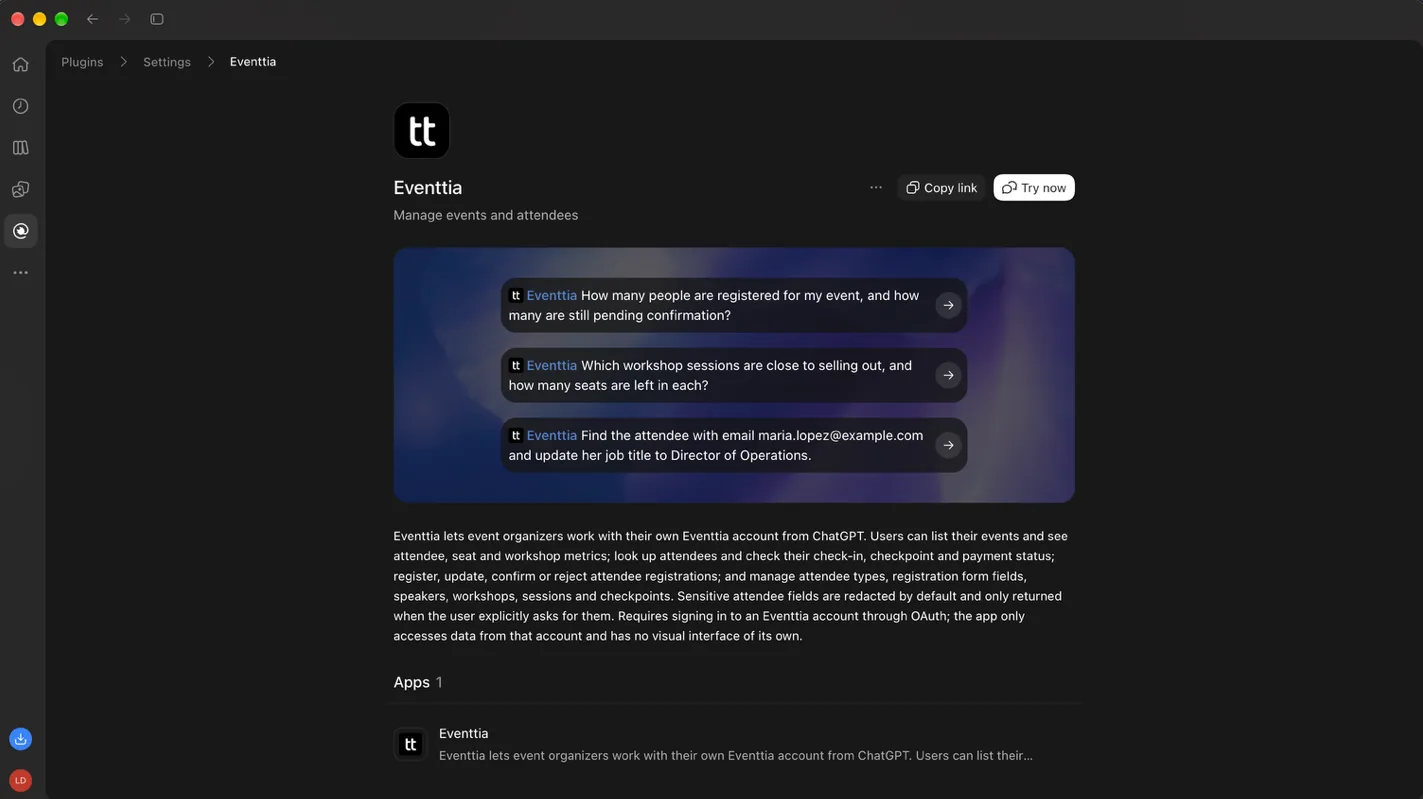
The Eventtia plugin in ChatGPT’s plugin directory
Is it safe to give ChatGPT access to your event data?
ChatGPT only gets the access you already have. Here is how Eventtia protects your data:
- Your permissions apply. ChatGPT signs in as you. If your role cannot edit payments, ChatGPT cannot either.
- Sensitive attendee fields stay hidden. They are only shown when you ask for them.
- Every change is recorded. All updates appear in your Eventtia history, under your account.
- No model training. Eventtia does not train AI models on your prompts or your event data.
How do you create an event in Eventtia with one ChatGPT prompt?
Paste your event brief into a new chat and ask ChatGPT to ask you for any missing details before it creates the event. ChatGPT reads the brief, asks follow-up questions, and then creates the event in Eventtia. You finish by checking the result in your Eventtia dashboard.
Without AI, setting up an event means filling in boxes and text across five or six screens. With ChatGPT, it starts with a single prompt. Here is how we did it in the video.
Step 1: Prepare your event brief
Your brief is the text you would normally send to a colleague. For our demo event, it included:
- The event name and venue.
- Dates, start time and end time.
- Attendee types and their prices.
- Workshops.
- Custom fields to add to the registration forms.
Step 2: Paste the brief into a new chat
Open a new chat in ChatGPT and paste your brief with one clear request. Here is the prompt we used for our sample event, the Future World Forum:
“Create this event in Eventtia. Before you create it, ask me for any missing details.
Event name: Future World Forum
Theme: Shaping the Future: The Impact of A.I. on the Workforce
Venue: Manhattan Center, 311 W 34th St, New York
Date: December 14, 2026, from 12:00 to 21:00
Attendee types and prices:
- Standard: $180, full program
- Startups: $450, full program plus the Cocktail and Networking session
- Students: free, full program, valid student status required
Workshop: Interactive Workshop, 13:30 to 14:30, Main Stage, 300 seats, enrollment required
Custom fields for the registration forms:
- All attendee types: company and job title
- Startups: startup name
- Students: university name”
The first two sentences matter most. They stop ChatGPT from guessing. Instead, it checks what is missing and asks you first.
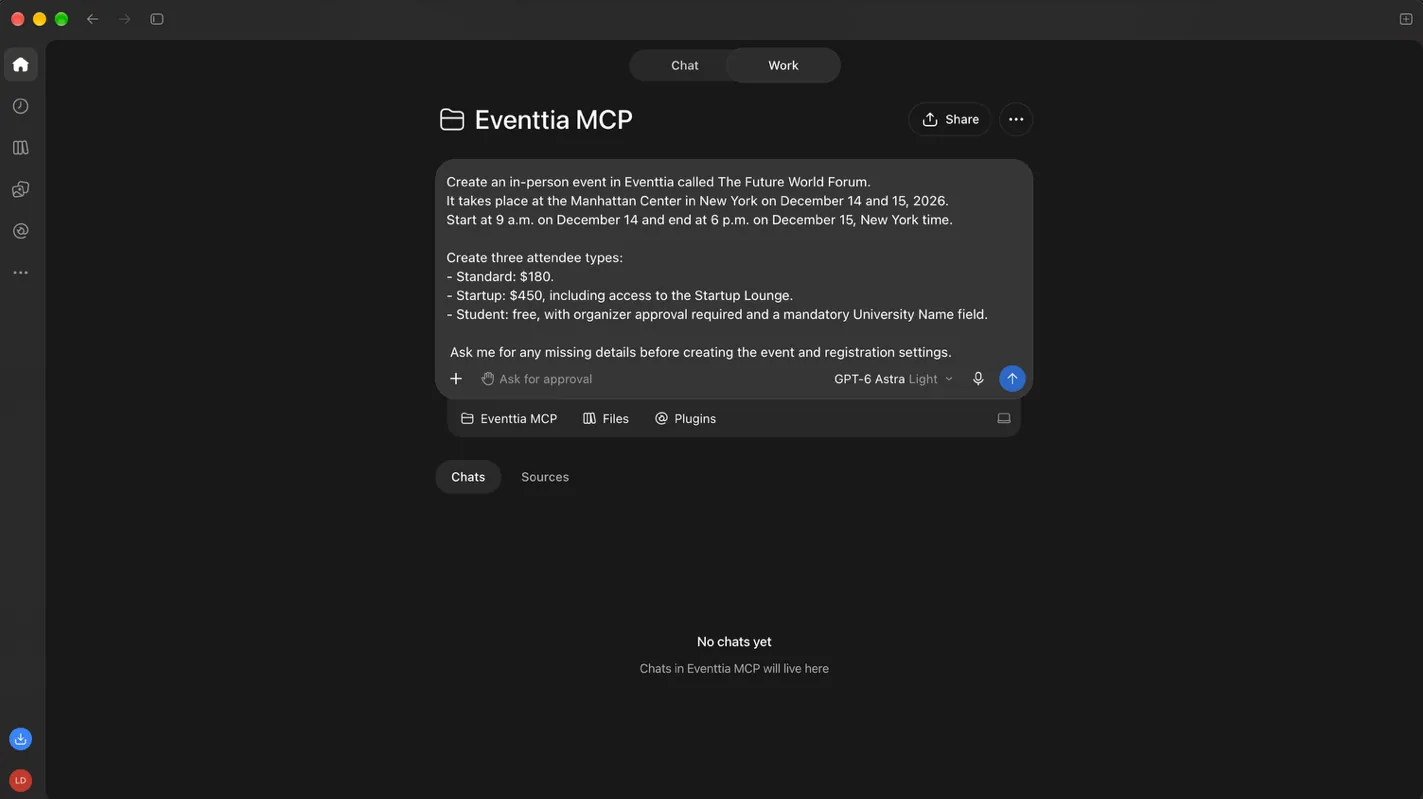
The event brief pasted into ChatGPT
Step 3: Answer ChatGPT’s follow-up questions
In our demo, ChatGPT came back with questions about:
- The event language.
- The registration link.
- Capacity.
- Dates.
- Pricing and ticket descriptions.
- Check-in points.
After our answers, ChatGPT asked for a few more details: the opening time, the closing time and the time of the startup launch. Once we replied, ChatGPT confirmed that the event was created in Eventtia.
Step 4: Check the event in Eventtia
Always review the work. Go to Eventtia, refresh your dashboard and check the configuration. In our demo, the event, attendee types, prices, workshops and form fields were all there, set up as requested.
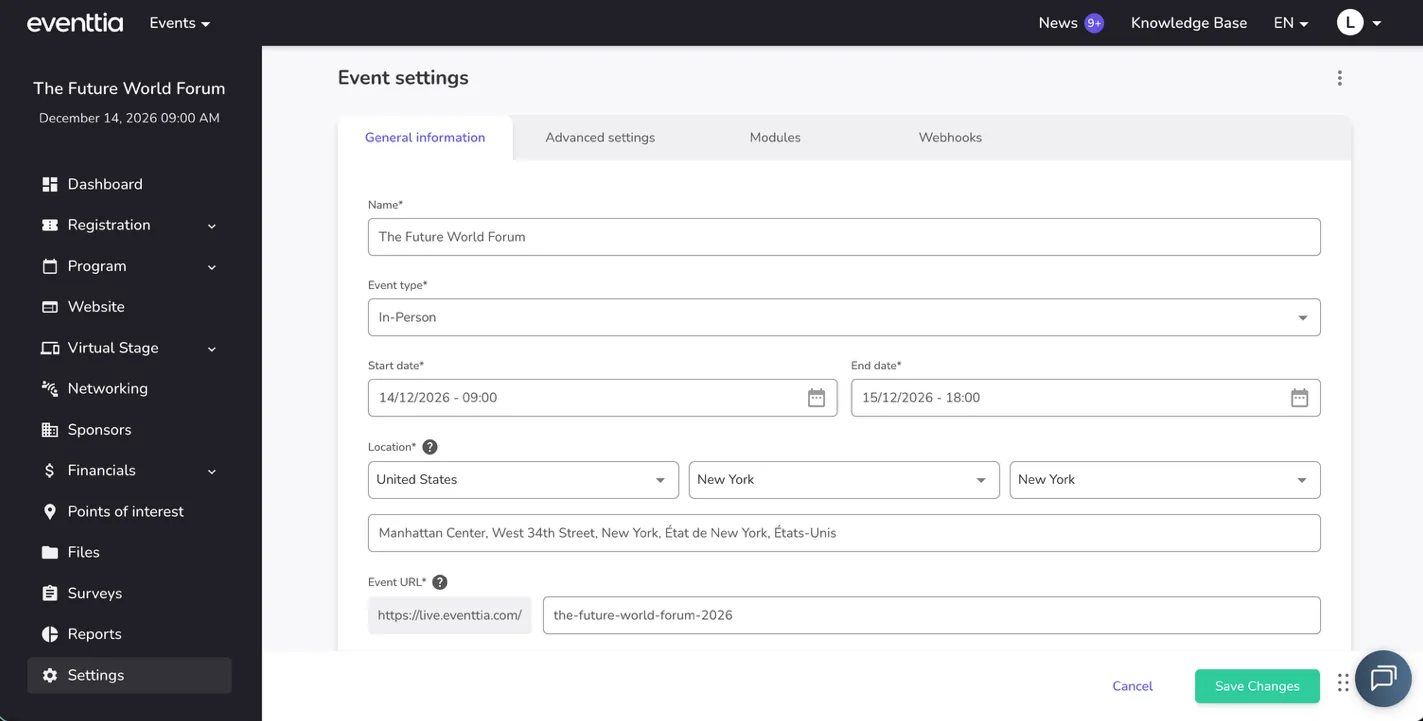
The event created by ChatGPT, in Eventtia
What else can you set up with ChatGPT?
This was one example. With ChatGPT and Eventtia, you can also set up:
- More attendee types, with their own prices and registration form fields.
- Sessions and workshops, with seat limits and enrollment.
- Speakers and their profiles.
- Check-in points and their access rules.
Once your event is live, you can change any of these settings with a few prompts. Some features, like emails, badges and discount coupons, are still set up directly in Eventtia.
How do you track registrations, payments and check-ins with ChatGPT?
Ask ChatGPT to build a web dashboard from your Eventtia data that refreshes every day. Then use short prompts to see who has not confirmed, who needs approval and who has not paid. When plans change, one prompt finds the affected attendees and updates their data.
Once registration opens, you need to follow what happens every day. Here is how we did it in the video.
Build a dashboard your team can share
We asked ChatGPT for a dashboard that updates by itself. Here is the prompt:
“Build me a web dashboard with registrations, revenue, and show rate per attendee type, refreshed every day at 6 a.m. from my Eventtia data. Respect my brand guidelines and visual identity.”
ChatGPT created a web dashboard with our event data. It compared registrations and attendance for each attendee type and showed the top sessions. It also added key takeaways, such as the attendee type with the best show rate and the best workshops and sessions.
The dashboard refreshes every day at 6 a.m. No more exporting data into spreadsheets by hand. You can also share it with your team.
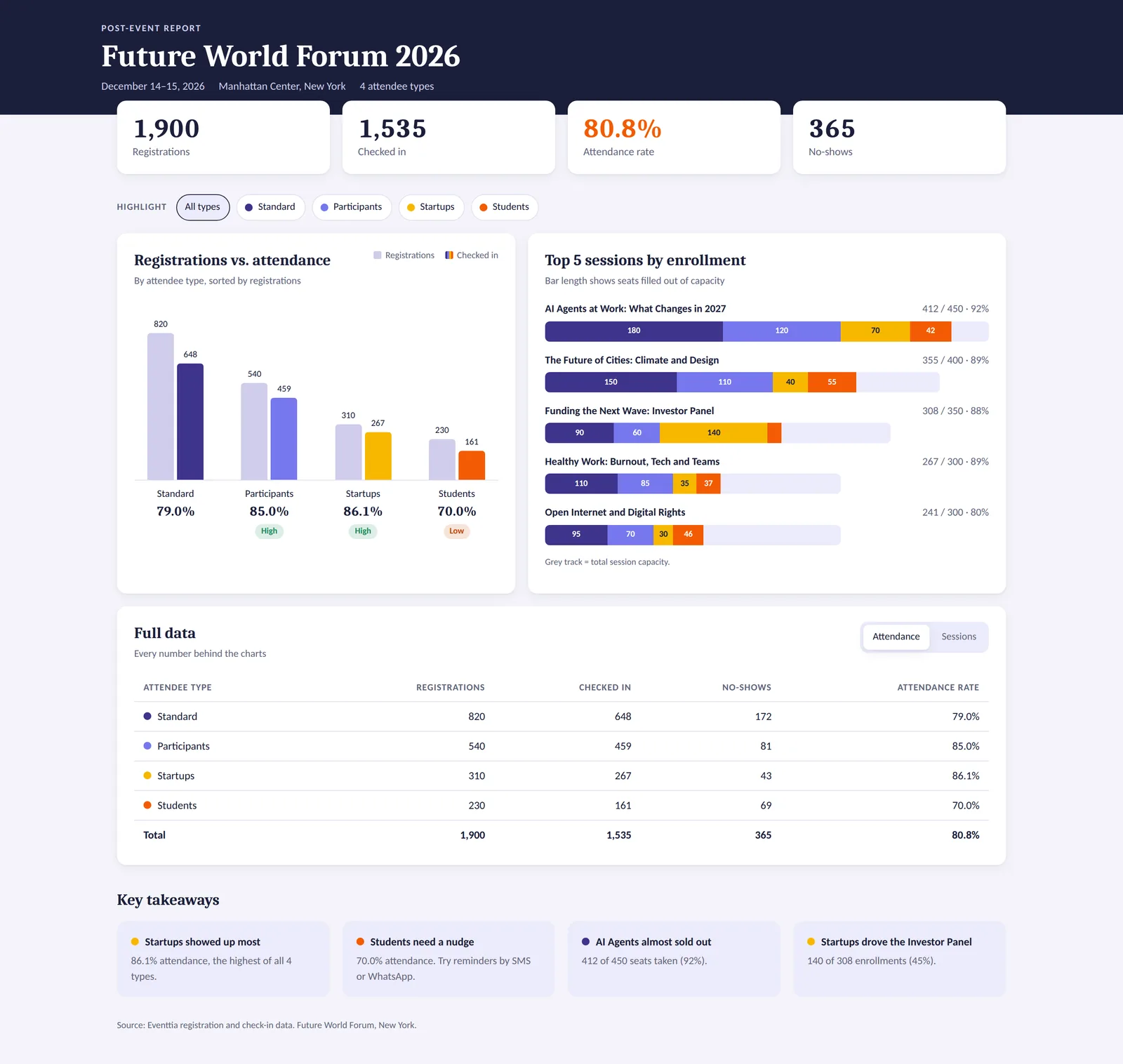
The registration dashboard built by ChatGPT from Eventtia data
Handle daily changes after registration opens
Most of the work starts after you open registration. Between that day and event day, you deal with hundreds of small changes: a new venue detail, a speaker update, a program change, a catering change. Each one can affect registrations, payments and attendee communications.
This is where ChatGPT saves the most time. You can find the data you need and make a change with one prompt.
Prompts you can use every day
- “Show me every attendee who registered but has not been confirmed yet.”
- “Which attendees have not paid yet?”
- “Confirm all pending attendees from our sponsor list and resend their registration email.”
Cancellations and refunds
When an attendee cancels or a session is canceled, ChatGPT finds the attendees affected, removes them from the session and lists the payments to refund, so you can process the refunds in Eventtia.
How do you create a post-event report with ChatGPT?
Ask ChatGPT for a one-slide summary built from your Eventtia data and your brand guidelines. Tell it which numbers to include, what to leave out, and ask it to flag any missing information. You get a clear report your team can read in 2 minutes.
The event is over. It went well. It is Monday morning, and your team wants the numbers. Here is the prompt we used in the video for our sample event, the Future World Forum:
“Create a single-slide PowerPoint summary of the Future World Forum using our brand guidelines and visual identity and my event data from Eventtia.
Include confirmed registrations, check-ins, attendance rate and revenue per attendee type.
Rank active workshops by enrollment.
Exclude draft, rejected and archived registrations, and canceled workshops.
Add three short observations supported by the data.
Flag any missing information.”
ChatGPT created a one-page report with our event data. It followed our visual identity and brand guidelines and covered every number we asked for. In one view, the team can see how the event performed.
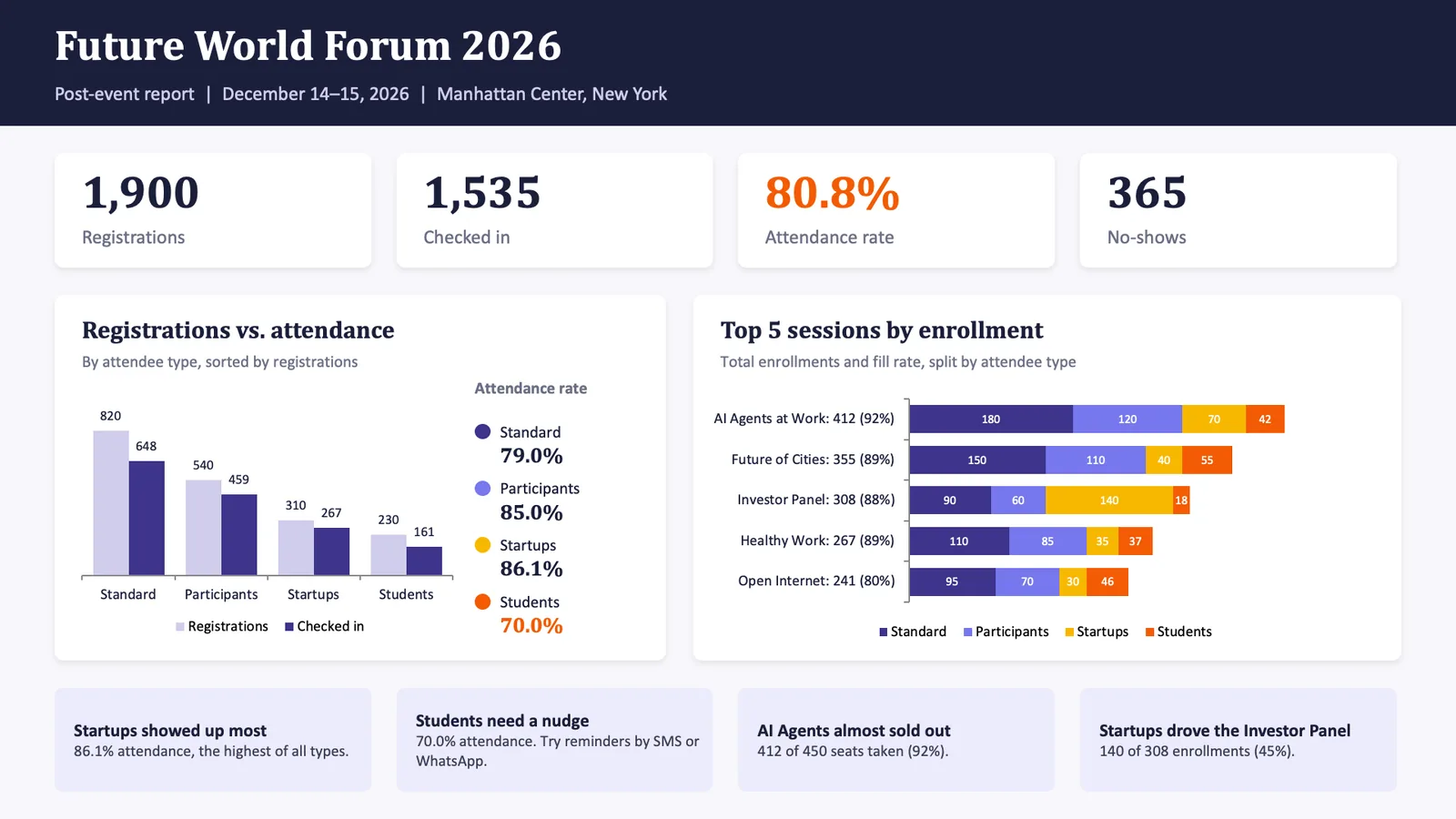
The one-slide post-event report created by ChatGPT
Why does this prompt work?
- It names the format. One slide, in PowerPoint, with your brand.
- It lists the exact numbers. ChatGPT does not have to guess what matters.
- It excludes bad data. Drafts, rejected and archived registrations, and canceled workshops would make your numbers wrong.
- It asks for proof. Each observation must be supported by the data.
- It asks for gaps. ChatGPT tells you what is missing instead of inventing it.
Can you build more detailed reports?
Yes. This was a quick example. With ChatGPT and your event software, you can build longer reports that combine your event data with your CRM, your marketing data and your attendee satisfaction surveys. Our guide on how to write a post-event report covers what to put in a full report.
How does Delabie run 10 client events per month with Eventtia?
Delabie, the French manufacturer of water controls and sanitary ware, runs about 10 client events per month across 8 European countries and 5 languages on Eventtia. Since 2024, it has managed around 150 events and 9,400 attendees with a small team.
The challenge: every event started from zero
Delabie’s sales teams invited clients with paper invitations, city by city. The company runs the same types of events all year, in different cities, but every event meant starting again. Sales assistants had no single place to manage guest lists, track replies or follow up with people who had not answered.
The solution: one platform and reusable templates
Delabie now runs its full event program on Eventtia. Its teams can:
- Import guest lists from their client database.
- Send invitations that guests accept or decline in one click.
- Send reminders only to people who have not replied.
- Publish a short event website with the date, place and program.
- Check guests in on site with the Eventtia check-in app.
- Send SMS reminders and invitations.
With help from Eventtia’s support team, Delabie built translated templates. A sales assistant opens a template, changes the city and the date, and the event is live.

A Delabie client event website, built with Eventtia
The results
| Before Eventtia | With Eventtia |
|---|---|
| Paper invitations | Online invitations with one-click replies |
| 1 country (France) | 8 countries within about one year |
| Each event built from scratch | Reusable templates in 5 languages |
| No reliable data | Acceptance and attendance rates, automatically |
| 5 users | 10 users |
| Setup took days | Setup takes minutes |
What does this mean for teams using ChatGPT?
Delabie shows that the biggest time savings come from repeat work done right. Templates made each new event fast. ChatGPT adds another option for repeat work: you can ask for it in a sentence. For example: “Duplicate last year’s event structure for the 2027 edition.”
Read the full Delabie case study.
Can you do the same with Claude or Copilot?
Yes. Eventtia’s MCP server works with any AI assistant that supports MCP, including Claude, Microsoft Copilot and Cursor. The prompts in this guide work the same way.
- Claude: Eventtia is listed in Claude’s connectors library. Search for Eventtia, connect and sign in. Our guide on how to use Claude for event planning shows the full workflow.
- Copilot and other assistants: add
https://connect-mcp.eventtia.com/mcpas the server address, then sign in with your Eventtia account.
For more ideas on what ChatGPT can do before and around registration, read how to use ChatGPT for event planning.
Frequently asked questions
Can ChatGPT create an event in my event management software?
Yes, if your software has an MCP connection. With Eventtia, you paste your event brief into ChatGPT, answer its follow-up questions, and ChatGPT creates the event, attendee types, prices, workshops and form fields in your account.
Do I need to code to connect ChatGPT to Eventtia?
No. Install the Eventtia plugin from ChatGPT’s plugin directory and sign in with your Eventtia email and password. The setup takes less than 5 minutes.
Is the Eventtia MCP server included in my plan?
Yes. The Eventtia MCP server is included with every Eventtia plan, with all its tools. There is no add-on fee, no usage tier and no expiry date.
Can ChatGPT see my attendees’ personal data?
Only within your Eventtia permissions. Sensitive attendee fields are hidden by default and only shown when you ask for them. Every change ChatGPT makes is recorded in your Eventtia history.
Does Eventtia use my prompts to train AI models?
No. Eventtia does not train AI models on your prompts or your event data. ChatGPT has its own data policy, so check your ChatGPT settings too.
Can I use ChatGPT to report on several events at once?
Yes. ChatGPT can list and compare all the events in your Eventtia account, within your permissions. For example: “Compare registration numbers across our last five events.”
What is the fastest way to start managing registrations with ChatGPT?
Connect ChatGPT to Eventtia, then reuse the three prompts from this guide: one to create your event, one to build your dashboard, and one to report on results. Check each result in Eventtia before you share it.
Today we covered the basics. We will publish more videos soon on what event teams can do with AI. Watch the full demo on YouTube and subscribe to our channel so you do not miss the next one. Want to see it on your own events? Book a demo.
Eventtia is the platform behind the brands setting the standard.
Talk to us about how the platform fits into your stack — registration, communications, on-site, and analytics, exposed deeply enough to compose.